We’ve recently added Single Sign-On (SSO) and improved our Multi-Factor Authentication (MFA) experience. These features are designed to enhance security and streamline access for your organization. Let’s dive into the details!
Multi-Factor Authentication (MFA) Improvements
While MFA was always available via Google authentication, we’ve added support for native MFA for Portal’s Admin Dashboard, providing an extra layer of protection for your accounts.
- How It Works: Users can opt in to MFA themselves, or organizations can enforce it for all users. Enforcing it at the organization level ensures that nobody forgets to set it up!
- Our Offering: At this time, MFA is supported via TOTP (Time-Based One-Time Password) through authenticator apps like Google Authenticator or Authy - no SMS required.
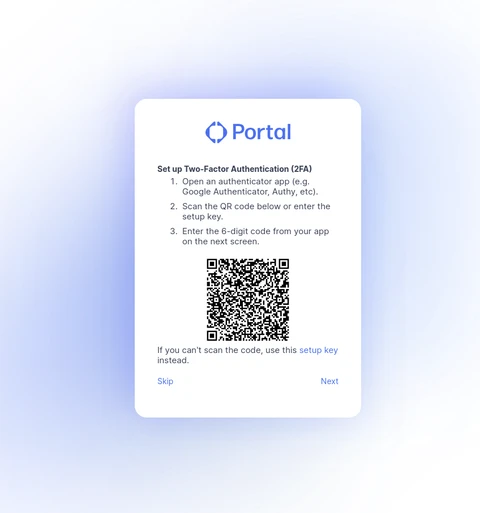
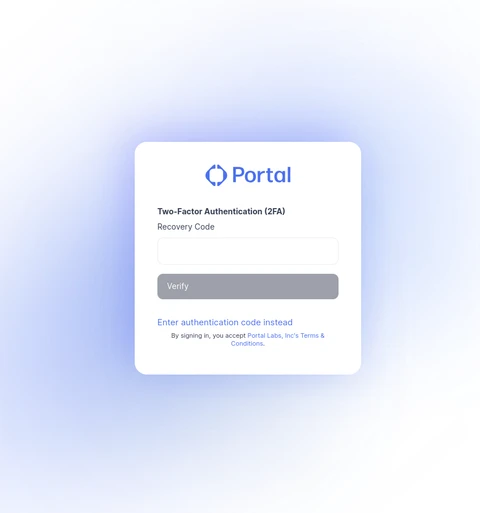
By enforcing MFA in your organization, you can safeguard access with more than one form of authentication!
Single Sign-On (SSO)
We’ve introduced SSO support to simplify and centralize access management for your organization.
What is SSO?
SSO enables organizations to use a centralized identity provider (IdP) to manage authentication and authorization for external applications—like Portal’s Admin Dashboard. This means your team members can access the dashboard using their existing organization credentials.
Supported Providers
We now support popular identity providers, including:
- Okta SAML
- Okta OIDC
- Google SAML
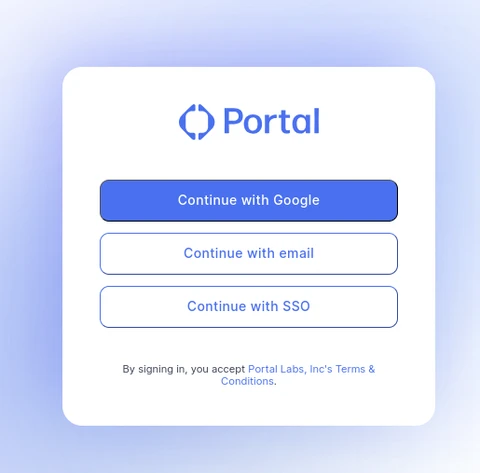
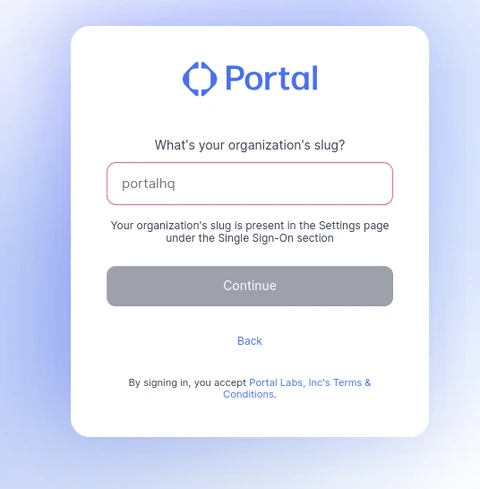
How SSO Works on the Dashboard
When SSO is configured:
- Members will provide your organization-specific slug.
- They’ll be redirected to your organization’s IdP for authentication.
- Once authenticated, they’ll gain access to Portal’s Admin Dashboard.
Setting Up SSO
To enable SSO:
- Contact the Portal team to activate the feature for your account.
- Configure SSO in the new Single Sign-On section on the Settings page using SAML or OIDC protocols.
- Configure your identity provider with the information provided to complete the setup.
Why These Updates Matter
With MFA, individual accounts are fortified against unauthorized access, giving users and organizations greater peace of mind. SSO, on the other hand, reduces the friction of managing multiple credentials while keeping access secure and compliant. Together, these features make Portal’s Admin Dashboard safer and easier to use than ever before.
Ready to enhance your security? Start using MFA and SSO today!